

Cross Stitch Pattern Creator
Category : Art & DesignVersion: 5.0.2
Size:7.1 MBOS : Android 8.0+
Developer:Crochet Designs
 Download
 Design your own custom cross stitch patterns.
Cross Stitch Pattern Creator
Includes 4 free sample patterns. The download is free; activation requires a $2.99 purchase.
A tablet is highly recommended for optimal viewing due to typical pattern dimensions.
Craft your own unique cross stitch patterns with the Cross Stitch Pattern Creator.
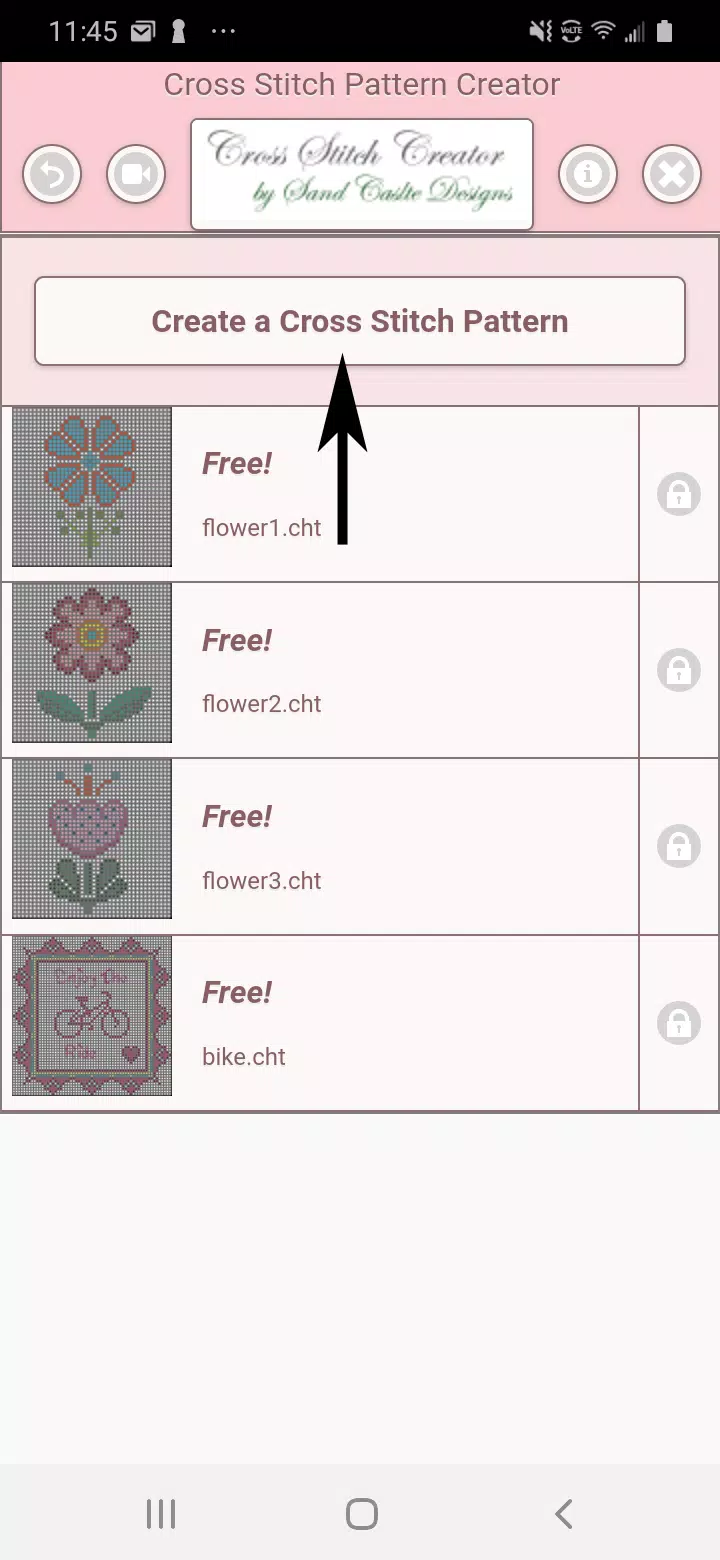
To begin, select the "Create a Cross Stitch Pattern" button.
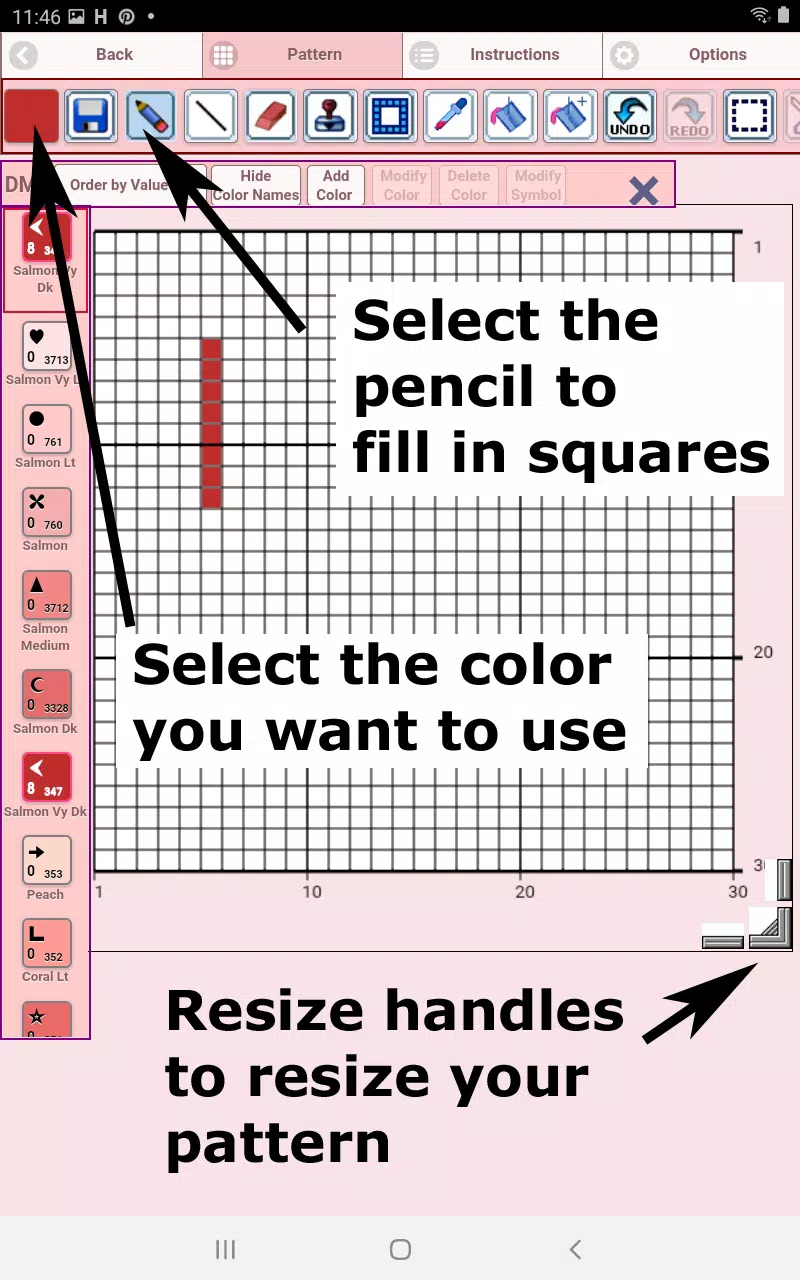
The Cross Stitch Pattern Editor will open. Fill the grid squares with DMC floss colors.
You can even create and add custom colors if desired.
Getting started: Use the Pencil tool to fill squares in your pattern. Use the Eraser to clear filled squares.
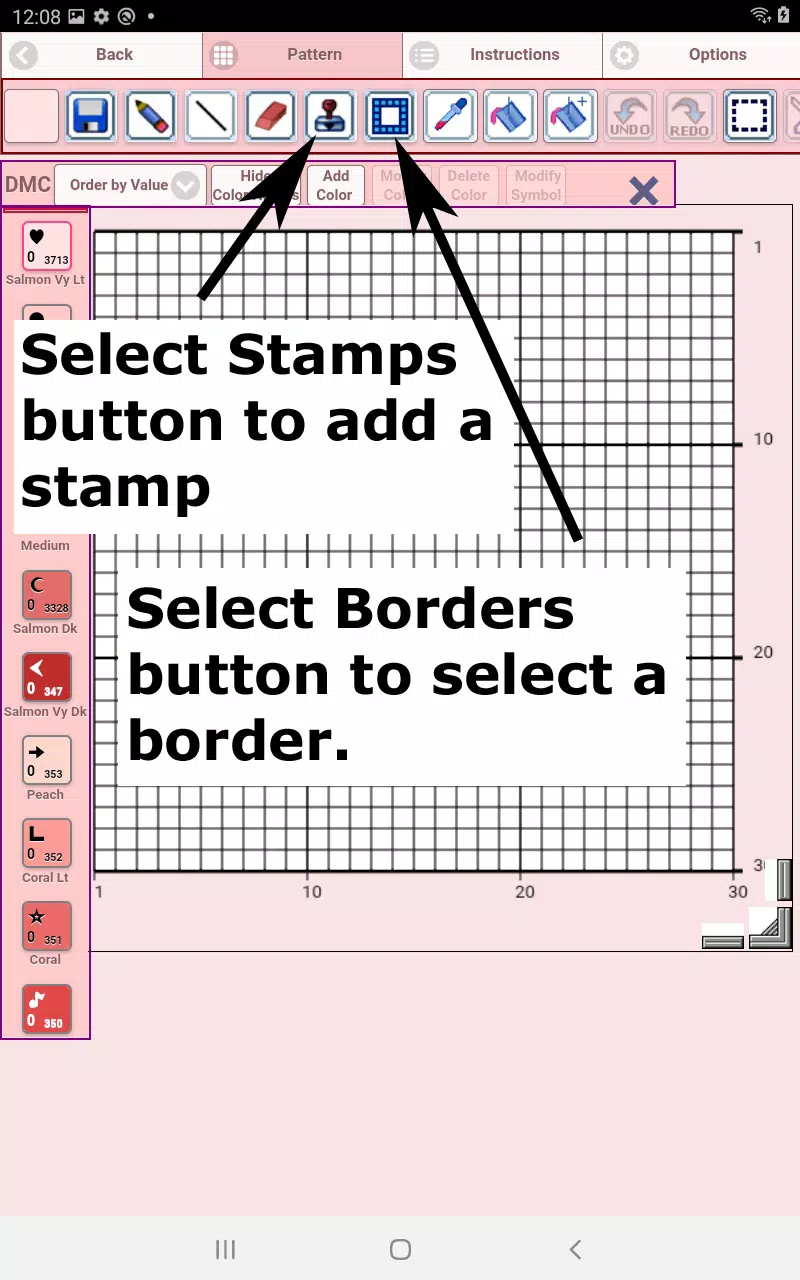
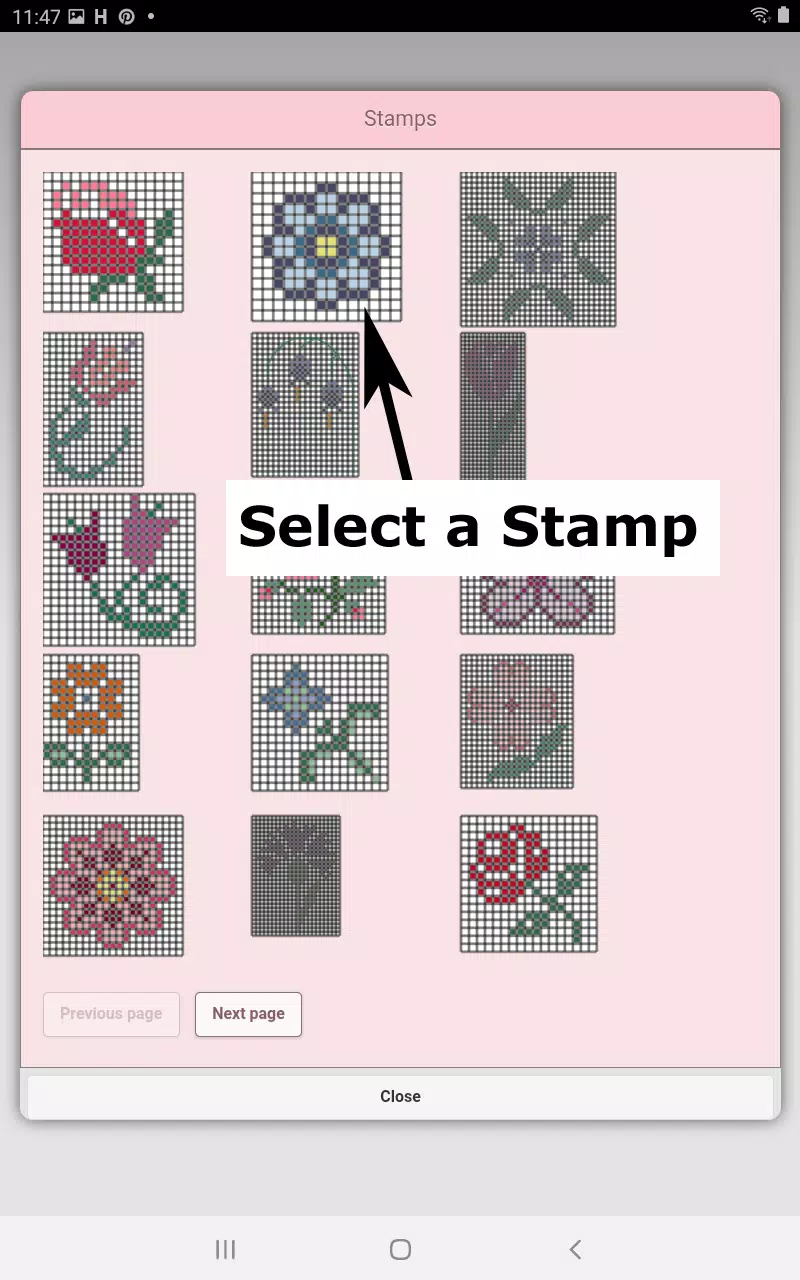
Additionally, choose from over 80 decorative stamps and borders to apply to your pattern.
The toolbar buttons, from left to right, are:
DMC Floss Color button – Select your desired floss color.
Save button – Save your pattern.
Pencil button – Fill in grid squares on your pattern.
Eraser button – Erase filled squares and backstitch lines.
Backstitch button – First, choose a color from the color button. Then, select the Backstitch button to add lines to your pattern.
Backstitch move button – Select and drag an entire backstitch to a new position.
Backstitch move stitch end – Select a backstitch; blue handles appear at each end. Drag either handle to reposition that endpoint.
Stamps button – Choose from small, decorative cross stitch stamps to add to your design.
Borders button – Add selectable borders that automatically wrap around your pattern.
Dropper button – Extract a color from your pattern to use more of it.
Bucket button – Fill a selected area with the currently chosen color.
Bucket+ button – Replace one color with the currently selected color across the pattern.
Undo button – Reverse your most recent change.
Redo button – Restore any changes you previously undid.
Selection box button – Select an area of the pattern to cut, copy, rotate, or flip.
Cut button – First, use the Selection box to choose an area. Then, use Cut to remove it.
Copy button – First, use the Selection box to choose an area. Then, use Copy to duplicate it to the clipboard.
Paste button – Paste the copied area onto your pattern, then drag it to the desired location.
Rotate button – Rotate the selected area or the entire pattern.
Flip right/left button – Flip the selected area or entire pattern horizontally.
Flip top/bottom button – Flip the selected area or entire pattern vertically.
Zoom in button – Enlarge the pattern view.
Zoom out button – Reduce the pattern view.
Symbols button – Display a unique symbol on each color to represent its color value.
Picture button – Import a photo from your device and convert it into a pattern.
Social media button – Share your pattern via email, text, or other platforms.
Resize bars – Located at the bottom-right corner of your pattern. Drag them to adjust the pattern dimensions.
Option settings – Customize the grid color, switch the fill style from Solid to X's, or hide the row/column counter.
Select not to display the row/column counter.
Instruction page – Shows the DMC colors used and the finished pattern sizes for
various Aida cloth counts.
Finished Product page – Displays a preview of your stitched pattern. You can also simulate different fabric colors.




- Black Myth: Wukong Launches on Xbox Series X/S August 20 3 days ago
- RAID Shadow Legends Clan Boss Guide A Journey from Easy to Ultra-Nightmare Difficulty 5 days ago
- Tokyo Xtreme Racer: Pre-Order and DLC Announced 5 days ago
- Last Cloudia to host a new collaboration with popular isekai anime Re:ZERO 6 days ago
- "Clair Obscur Director Exits Ubisoft, Eyes 2025 GotY" 6 days ago
- Splitgate 2 Release Date and Time 1 weeks ago
-

Productivity / 2.7.5 / by Dickensheet & Associates, Inc. / 50.40M
Download -

Photography / 1.1.4.0 / by Face play Photo Editor & Maker / 123.69M
Download -

Communication / 2.0.0.24 / 59.72M
Download -

Tools / 1.6.0 / by Country VPN LLC / 67.71M
Download -

Personalization / 3.420.0 / 10.35M
Download -

Communication / 1.0 / 5.29M
Download

-
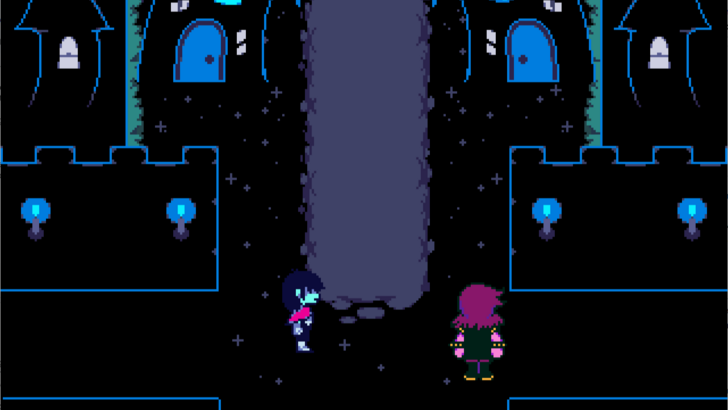 Deltarune Chapters 3 & 4: Save Files Compatible with Predecessors
-
 "GTA 6: Ultimate Guide - Release, Gameplay, Story - Feb 2025"
-
 NBA 2K25 Unveils Updates for 2025 Season
-
 Unlock Secret Debugging Tools: Access Balatro's Hidden Cheats
-
 Goat Simulator 3 Unleashes Ultimate Customization with Shadowy Update
-
 New York Times Strands Hints and Answers for December 25, 2024