Splitgate 2 is one of the most anticipated games of 2025, a highly anticipated sequel to a beloved title. However, being in Alpha, it's experiencing some growing pains—crashes, frame drops, and performance hiccups are unfortunately common. But don't worry, optimizing your settings can significantly improve your gameplay experience. Here's how to maximize your framerate and minimize input lag in Splitgate 2.
Recommended Videos **Related: What Is Splitgate 2’s Release Date?**
Splitgate 2 System Requirements
Before diving into optimization, ensure your PC meets the minimum requirements. Luckily, Splitgate 2 isn't overly demanding.
Minimum
- Processor: Intel® Core™ i3-6100 / Core™ i5-2500K or AMD Ryzen™ 3 1200
- Memory: 8 GB RAM
- Graphics: NVIDIA® GeForce® GTX 960 or AMD Radeon™ RX 470
Recommended:
- Processor: Intel® Core™ i5-6600K / Core™ i7-4770 or AMD Ryzen™ 5 1400
- Memory: 12 GB RAM
- Graphics: NVIDIA® GeForce® GTX 1060 or AMD Radeon™ RX 580
Splitgate 2 Best Video Settings
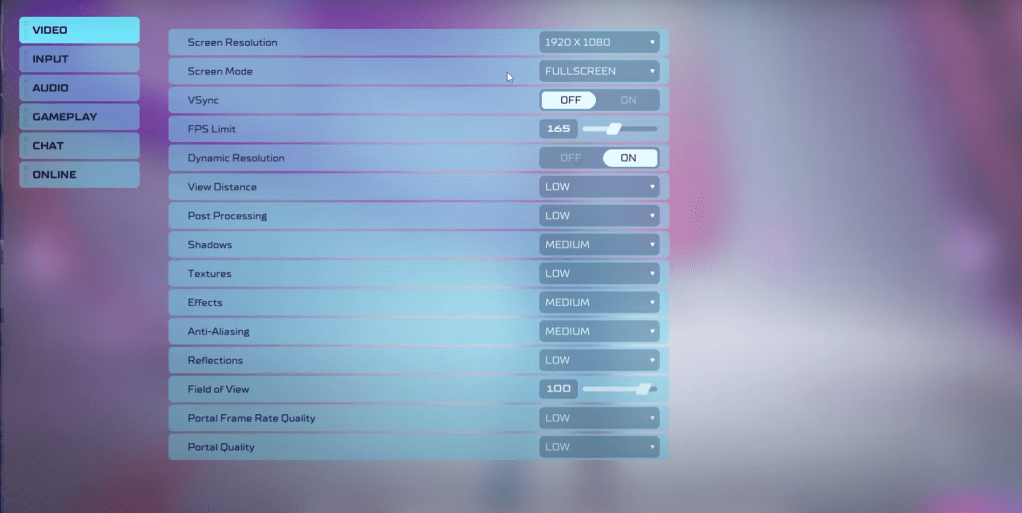
In a competitive shooter like Splitgate 2, performance trumps visual fidelity. The following settings prioritize smooth gameplay:
- Screen Resolution: Your monitor's native resolution (1920x1080 is standard).
- Screen Mode: Borderless Fullscreen (for easy Alt+Tabbing) or Fullscreen.
- VSync: Off (reduces input lag).
- FPS Limit: Your monitor's refresh rate (60, 144, 165, 240 Hz, etc.).
- Dynamic Resolution: On (experiment with Off; results vary).
- View Distance: Low
- Post Processing: Low
- Shadows: Medium (Low for older systems).
- Effects: Low
- Anti-Aliasing: Low (increase if you see shimmering).
- Reflection: Low
- Field of View (FOV): Maximum (though slightly reducing it might improve performance).
- Portal Frame Rate Quality: Low
- Portal Quality: Low
Generally, aim for the lowest settings. However, if the visuals are too jarring, consider slightly increasing Effects and Anti-aliasing—these settings have a relatively minor performance impact.
Note that FOV can heavily impact framerate. While maximum FOV is ideal for competitive play, a small reduction (3-4 points) can yield noticeable performance gains.
Other Recommended Splitgate 2 Settings
These settings won't boost FPS directly, but they enhance the overall experience:
- Sensitivity: Adjust to your preference; use online calculators to convert settings from other games.
- Audio: Lower the in-game music if it's distracting. Enable Windows Spatial Sound for improved audio cues.
That's it for optimizing Splitgate 2. Enjoy a smoother, more responsive gameplay experience!
Related: 10 of the Most Fun Games to Play With Friends




![Taffy Tales [v1.07.3a]](https://imgs.xfsxw.com/uploads/32/1719554710667e529623764.jpg)