Troubleshooting the "Can't Connect to Host" Error in Ready or Not
One of the most frustrating experiences in Ready or Not is the inability to connect to games. While developers are likely working on a permanent solution, a fix isn't guaranteed anytime soon. This guide outlines troubleshooting steps to resolve the "Can't Connect to Host" error.
Causes of the "Can't Connect to Host" Error
This error typically indicates a problem connecting to the game's servers. Potential causes include network issues, corrupted game files, version mismatches, and interfering background applications. Pinpointing the exact cause can be challenging, but several solutions are worth trying.
Solutions for the "Can't Connect to Host" Error
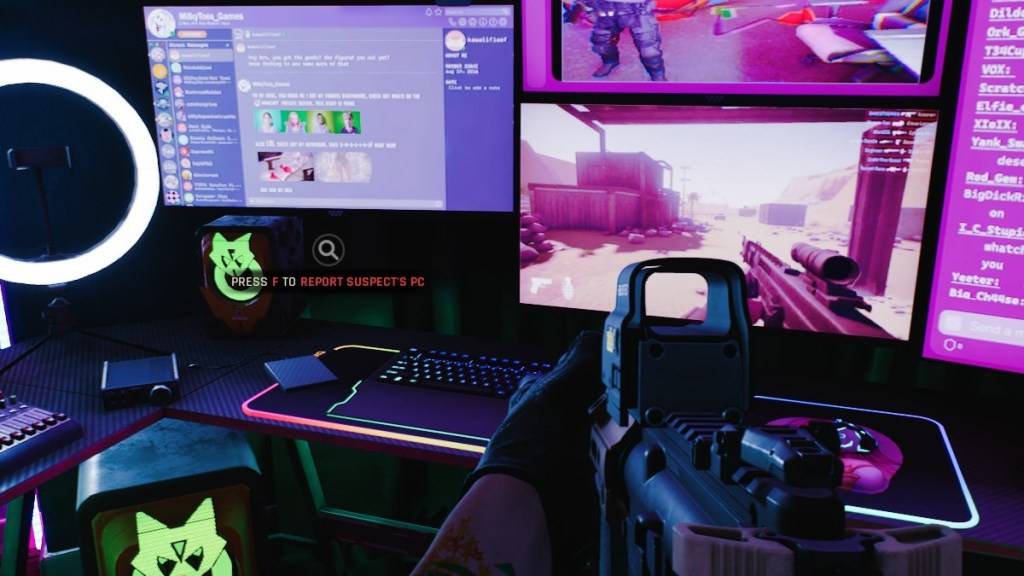
Here are several troubleshooting steps:
-
Restart the Game and Platform: A simple restart of Ready or Not and your game launcher (e.g., Steam) is often the first and easiest solution.
-
Verify Game Files: Corrupted or missing game files are a common culprit. On Steam, navigate to your library, right-click Ready or Not, select "Properties," then "Local Files," and finally "Verify Integrity of Game Files." This process may take a few minutes and might result in a small update.
-
Add Ready or Not to Firewall Exceptions: While uncommon, Windows Firewall can sometimes block game connections. Add Ready or Not as an allowed application in your firewall settings. The exact steps vary depending on your firewall software, but generally involve locating the application's executable file and adding it to the allowed applications list.
-
Disable VPNs and Unnecessary Background Apps: VPNs, while sometimes beneficial for reducing ping, can interfere with game connections. Disable any VPNs while playing. Similarly, close unnecessary background applications that might be consuming bandwidth or system resources.
-
Adjust DirectX (DX) Mode: In rare cases, launch options can contribute to connection problems. If you've modified launch options, try reverting to default settings or experimenting with different DirectX versions.
-
Reinstall the Game: As a last resort, a clean reinstall might be necessary. Uninstall Ready or Not through your game launcher, manually delete any remaining game files from your hard drive, and then reinstall the game. Also, consider deleting any related files from your Local AppData folder (%localappdata% in Windows).
The "Can't Connect to Host" error is undeniably frustrating, but hopefully, these steps will help you get back into the action.
Ready or Not is available now on PC.





![Taffy Tales [v1.07.3a]](https://imgs.xfsxw.com/uploads/32/1719554710667e529623764.jpg)